

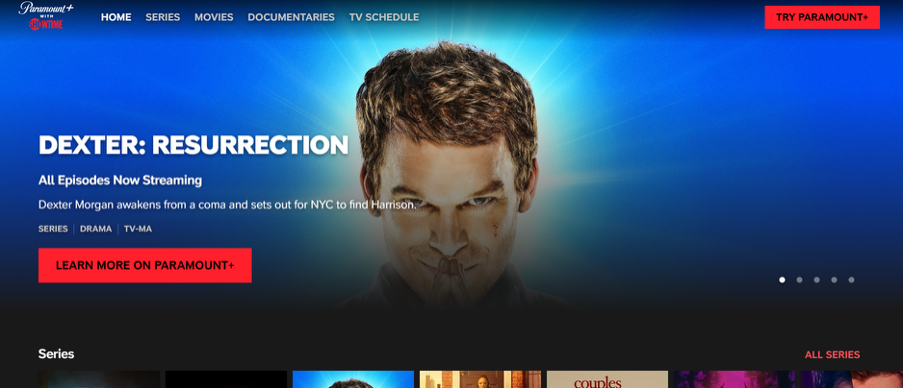
Need to cancel Showtime? Here's what makes it complicated: Showtime merged with Paramount+ in 2023.
If you subscribed after 2023, you technically have Paramount+ with Showtime, not standalone Showtime. If you subscribed before the merger, your old Showtime subscription still exists but is managed through Paramount+.
Add to the confusion: Many people subscribe through third-party platforms like Amazon Prime Video Channels, Hulu, Roku, Apple TV Channels, or cable providers. If that's you, you cannot cancel through Paramount+. You must cancel where you signed up.
This guide covers every cancellation method: direct Paramount+ subscriptions, Apple iOS, Android/Google Play, Amazon Prime Video Channels, Hulu, Roku, and more. We'll also explain what to do when the cancel button is missing.
Potential savings: Up to $143.88 per year if you're on the Paramount+ with Showtime plan.
Before You Cancel: Find Out Where You Subscribed
This is the most important step. Canceling in the wrong place wastes your time and won't stop the charges.
How to Check Where You're Being Billed
1. Check your credit card or bank statement
Look for the most recent Showtime or Paramount+ charge. The billing name tells you who handles your subscription:
"Paramount+" or "PPLUS" → Cancel through Paramount+ website
"Apple.com/bill" or "Apple" → Cancel through iPhone Settings or App Store
"Google Play" → Cancel through Google Play Store on Android
"Amazon Prime Video" or "AMZN" → Cancel through Amazon Prime Video
"Hulu" → Cancel through Hulu account settings
"Roku" → Cancel through Roku account or Roku device
Your cable provider name (Xfinity, Spectrum, Cox, etc.) → Cancel through cable provider
2. Check your email for subscription confirmations
Search your inbox for "Showtime" or "Paramount+" and look for the original signup confirmation. It will specify which platform processed your subscription.
Critical: If you subscribed through a third party (Amazon, Hulu, Roku, Apple, etc.), Paramount+ cannot cancel your subscription. They don't have access to it. You must use the platform where you signed up.
How to Cancel Showtime on Paramount+ Website (Direct Subscription)
Use this method only if you subscribed directly through Paramount+ or the old Showtime website. If you subscribed through another service, skip to that section below.
Step-by-Step Instructions
1. Go to paramountplus.com
Open your web browser (Chrome, Firefox, Safari, or Edge) and navigate to the Paramount+ website. The old showtime.com domain now redirects here.
2. Sign in to your account
Click "Sign In" in the top-right corner. Enter the email address and password you used when you subscribed. If you forgot your password, click "Forgot Password" to reset it via email.
3. Navigate to Account Settings
After logging in, hover over your profile icon or name in the top-right corner. Click "Account" from the dropdown menu.
4. Find Subscription & Billing
Scroll down on the Account page until you see "Subscription & Billing" or "Manage Subscription." This section shows your current plan and billing details.
5. Click Cancel Subscription
Look for a link or button that says "Cancel Subscription," "Cancel Plan," or "Turn Off Auto-Renewal." Click it.
6. Decline retention offers
Paramount+ will likely offer you a discount (usually 25-50% off for 2-3 months) to stay subscribed. They may also ask why you're canceling. If you truly want to cancel, click "No Thanks" or "Continue Cancellation" through all the offers.
7. Confirm cancellation
On the final screen, confirm that you want to cancel. You should see a message like "Your subscription will end on [date]." Screenshot this page.
8. Check your email
Within an hour, you should receive a confirmation email from Paramount+ confirming your cancellation. Save this email as proof.
Important: Your access continues until the end of your current billing period. If you cancel on January 15th and your renewal date is February 1st, you'll have access until February 1st. No refunds for partial months.
How to Cancel Showtime on iPhone or iPad (iOS)
If you subscribed through the Showtime or Paramount+ app using your Apple ID, your billing is managed by Apple, not Paramount+. You must cancel through iPhone Settings.
Step-by-Step Instructions
1. Open the Settings app
Tap the gray gear icon on your home screen to launch Settings.
2. Tap your Apple ID
Your name and profile picture appear at the very top of the Settings screen. Tap on it.
3. Select "Subscriptions"
Scroll down and tap "Subscriptions." This shows all active and expired subscriptions tied to your Apple ID.
4. Find Showtime or Paramount+
Look for "Showtime," "Paramount+," or "Paramount+ with Showtime" in your list of active subscriptions. Tap on it.
5. Tap "Cancel Subscription"
At the bottom of the subscription details screen, you'll see a red "Cancel Subscription" button. Tap it. Sometimes you need to tap it twice for the confirmation screen to appear.
6. Confirm cancellation
A pop-up will ask you to confirm. Tap "Confirm" to finalize the cancellation.
7. Verify cancellation
The subscription screen should now show "Expires on [date]" instead of "Renews on [date]." Screenshot this for your records.
Pro tip: You'll also receive a confirmation email from Apple. Check your inbox for "Your subscription to [Showtime/Paramount+] has been canceled."
How to Cancel Showtime on Android
If you subscribed through the Google Play Store on your Android device, Google manages your billing, not Paramount+.
Step-by-Step Instructions
1. Open the Google Play Store
Launch the Google Play Store app on your Android phone or tablet.
2. Access your account menu
Tap your profile icon in the top-right corner. In the menu that appears, select "Payments & subscriptions."
3. Go to "Subscriptions"
On the Payments & subscriptions screen, tap "Subscriptions." This displays all active and expired subscriptions linked to your Google account.
4. Locate Showtime or Paramount+
Find "Showtime" or "Paramount+" in the list and tap on it.
5. Tap "Cancel subscription"
You'll see details about your subscription. Tap the "Cancel subscription" button.
6. Select a cancellation reason
Google will ask why you're canceling. Select any reason from the list—it doesn't affect the cancellation.
7. Confirm cancellation
Follow the final confirmation prompts. You should see a message confirming your cancellation and showing when your access ends.
8. Check your email
Google will send a confirmation email to your Gmail account. Save this as proof of cancellation.
How to Cancel Showtime on Amazon Prime Video Channels
Many people subscribe to Showtime as an add-on through Amazon Prime Video Channels. This is one of the most common third-party subscription methods.
Step-by-Step Instructions
1. Go to amazon.com
Open your web browser and navigate to Amazon.com. Sign in to your Amazon account.
2. Navigate to Prime Video Settings
Hover over "Account & Lists" in the top-right corner. Click "Prime Video" from the dropdown, then click "Prime Video Settings" or go directly to amazon.com/gp/video/settings.
3. Select "Channels"
On the Prime Video Settings page, look for the "Channels" section or click "Your Channels" in the left sidebar.
4. Find Showtime
Scroll through your active channels until you find "Showtime" or "Paramount+ with Showtime."
5. Click "Cancel Channel"
Click on Showtime, then click the "Cancel Channel" or "Cancel Subscription" button. Amazon may offer you a discount or free trial extension—decline if you want to cancel.
6. Confirm cancellation
Follow the prompts to confirm. You'll see a message showing when your Showtime access ends.
7. Verify via email
Check your email for a confirmation from Amazon. Screenshot both the confirmation page and the email.
Note: You can also cancel through the Prime Video app on your device. Go to Settings > Channels > Showtime > Cancel Channel.
How to Cancel Showtime on Hulu
If you added Showtime as a Hulu add-on, you need to cancel through Hulu’s account management.
Step-by-Step Instructions
1. Go to hulu.com
Open your browser and navigate to Hulu.com, then log in to your account.
2. Navigate to Account
Click your profile name in the top-right corner, then select “Account” from the dropdown menu.
3. Find “Manage Add-ons”
Scroll down to the “Your Subscription” section. Look for “Manage Add-ons” and click it.
4. Locate Showtime
Find “Showtime” in your list of active add-ons.
5. Click “Remove”
Next to Showtime, click the “Remove” or “Cancel” button. Hulu will ask you to confirm.
6. Confirm removal
Click “Yes, Cancel Add-on” or the equivalent confirmation button. You’ll see a message showing when Showtime access ends.
7. Check your email
Hulu should send a confirmation email regarding the removal of the add-on. Save this as proof.
How to Cancel Showtime on Roku
Roku users can subscribe to Showtime through The Roku Channel. Cancellation requires accessing your Roku account, and there are two ways to go about this:
Method 1: Cancel through the website
1. Go to my.roku.com
Open your browser and navigate to my.roku.com. Sign in with your Roku account credentials.
2. Click "Manage your subscriptions"
On your account page, look for "Manage your subscriptions" under the Subscriptions section and click it.
3. Find Showtime
Locate "Showtime" or "Paramount+ with Showtime" in your active subscriptions list.
4. Click "Unsubscribe" or "Cancel Subscription"
Click the cancellation option next to Showtime and follow the confirmation prompts.
5. Save confirmation
Screenshot the confirmation page showing your cancellation and the date your access ends
Method 2: Cancel through the Roku device
1. On your Roku home screen, press the Home button on your remote
2. Navigate to "The Roku Channel"
3. Press the Star (*) button on your remote while The Roku Channel is highlighted
4. Select "Manage subscription"
5. Find Showtime and select "Cancel subscription"
6. Confirm your cancellation
How to Cancel Showtime Through Cable
If you added Showtime through your cable or satellite TV provider (e.g., Xfinity, Spectrum, DirecTV, Dish, Cox) you must cancel through them.
General Instructions (Provider-Specific)
Xfinity (Comcast): Call 1-800-XFINITY (1-800-934-6489) or visit xfinity.com, sign in, go to Manage Services > TV > Premium Channels, and remove Showtime.
Spectrum: Call 1-833-267-6094 or visit spectrum.net, sign in, go to Services > TV > Manage Premium Channels, and cancel Showtime.
DirecTV: Call 1-800-531-5000 or visit directv.com, sign in, go to My Account > Manage Add-ons, and remove Showtime.
Dish Network: Call 1-888-283-2309 or use the MyDish app to manage your subscriptions.
Cox: Call 1-800-234-3993 or visit cox.com, sign in, and manage your TV services.
Pro tip: Calling is usually faster than navigating provider websites. Have your account number ready before calling.
What Happens After You Cancel?
Understanding the post-cancellation timeline prevents confusion:
Immediate Effects
- Your subscription stops auto-renewing
- You receive a cancellation confirmation (email or on-screen)
- No future charges will occur
- Your account status changes to "Expires on [date]"
During Your Remaining Subscription Period
- You keep full access until your paid period ends
- All Showtime and Paramount+ content remains available
- You can still stream, download (if applicable), and watch live TV
- Your watch history and preferences are saved
After Your Subscription Expires
- You lose access to all Showtime and premium Paramount+ content
- Downloaded content becomes unplayable
- Your account remains dormant (you can reactivate anytime)
- Watch history and profile data are preserved if you return within 12 months
- Marketing emails may continue (unsubscribe separately if needed)
Refund policy: Paramount+ does not offer prorated refunds. If you cancel mid-cycle, you've already paid for the full month, so use your access until it expires.
Frequently Asked Questions
What's the difference between Showtime and Paramount+ with Showtime?
As of 2023, standalone Showtime no longer exists. It merged into Paramount+. "Paramount+ with Showtime" is the premium tier that includes all Showtime content plus the full Paramount+ library. If you had Showtime before 2023, it was automatically converted to Paramount+ with Showtime.
Can I pause my Showtime subscription instead of canceling?
No. Paramount+ does not offer a pause or freeze feature. Your only options are to keep the subscription active or cancel it. If you cancel and want to return, you can reactivate at any time.
How do I cancel Showtime if I subscribed through my cable provider?
You must contact your cable or satellite provider directly (Xfinity, Spectrum, DirecTV, etc.). Paramount+ cannot cancel subscriptions managed by cable providers. Call your provider's customer service or log in to their website to remove Showtime from your TV package.
What if I subscribed through a free trial?
Cancel using the same method as regular subscriptions. The key difference: cancel before your trial ends to avoid being charged. If your trial is through Apple, Amazon, or another third party, cancel through that platform. Check your trial end date in your account settings.
Can I reactivate after canceling?
Yes. You can reactivate Paramount+ with Showtime anytime by logging back into your account and resubscribing. If you return within 12 months, your watch history and preferences will be preserved.
Stop Unwanted Subscriptions Now
Struggling to cancel a subscription or figure out which ones are eating into your budget? Subscription management tools like Chargeback make it easier to track, manage, and cancel the services you no longer want.
Get help with your refund
"This app saved me
$127 in minutes"


.svg)
.png)


